Search and print
Use site search for content across meetings. Use agenda search to move through matches within a meeting.
Search the site
- Enter a distinctive keyword or phrase in Search by keyword or phrase.
- Select Search.
- Open a relevant result.
- Confirm the meeting date.
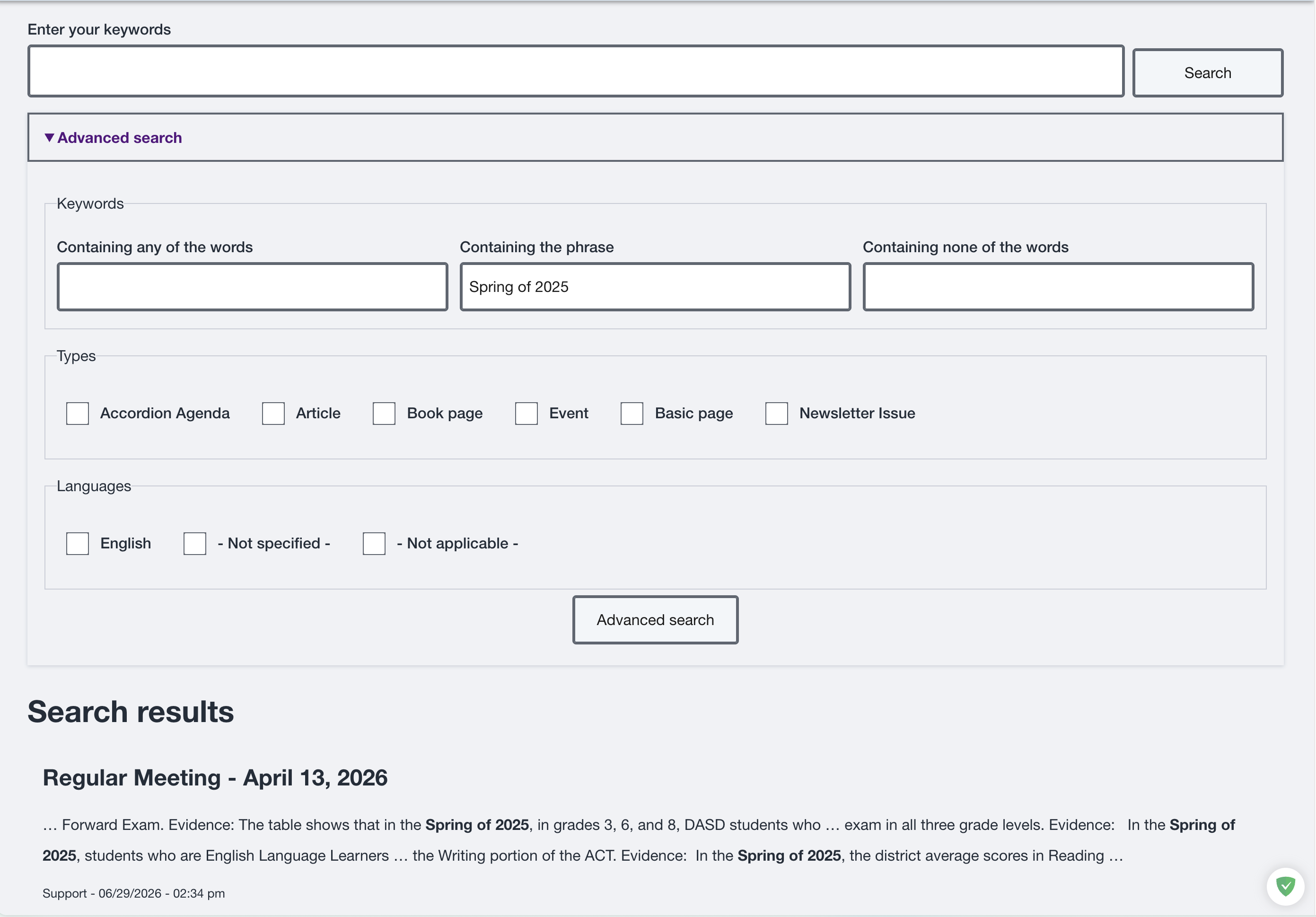
Figure SB-BRD-016. Site search and results.
Search within an agenda
- Enter the term in the meeting search.
- Submit the search.
- Review the highlighted match.
- Use Previous and Next to move between matches.
- Select Clear Search to remove highlights.
- Select Return to Results to go back.
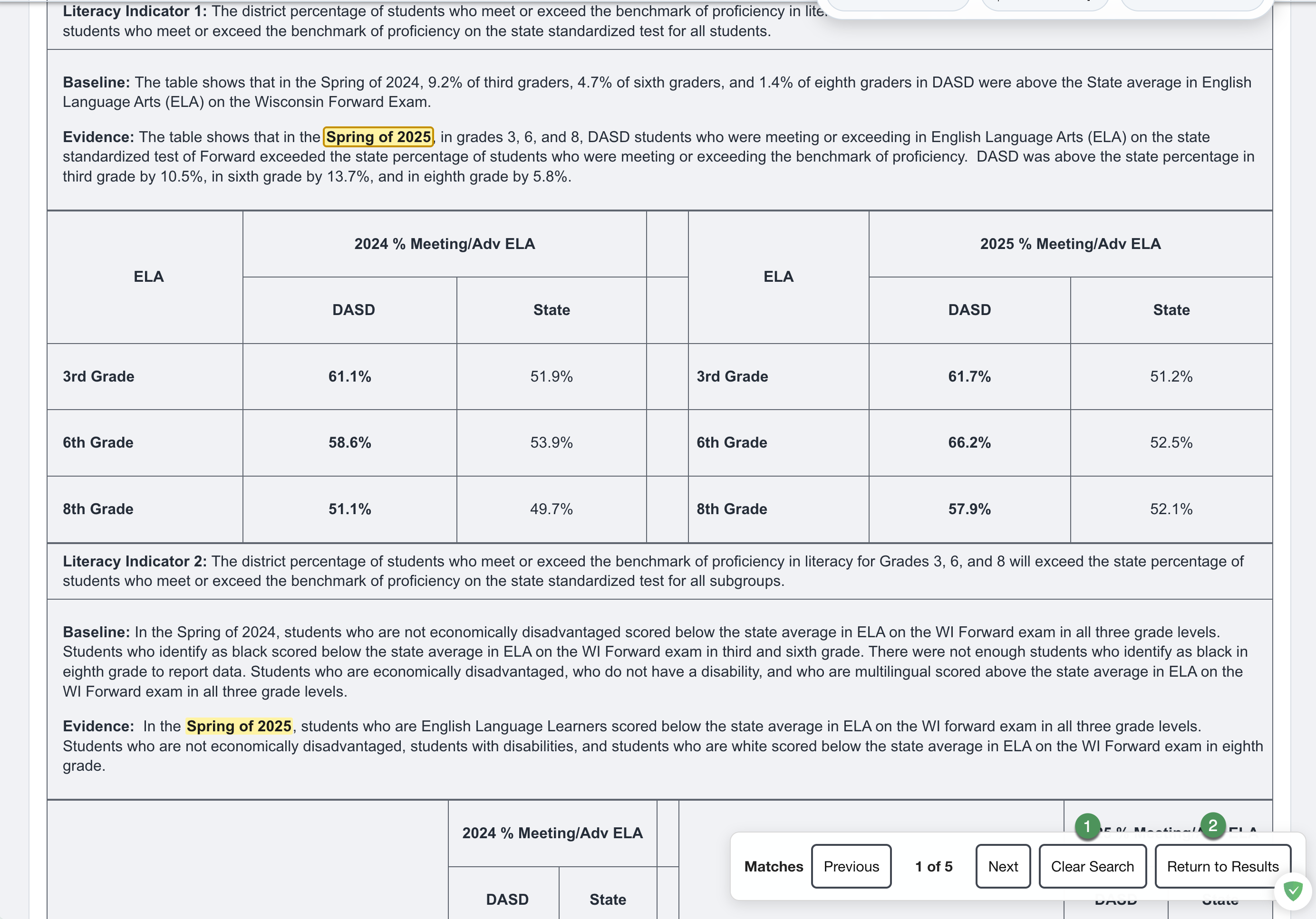
Figure SB-BRD-017. Highlighted agenda search match.
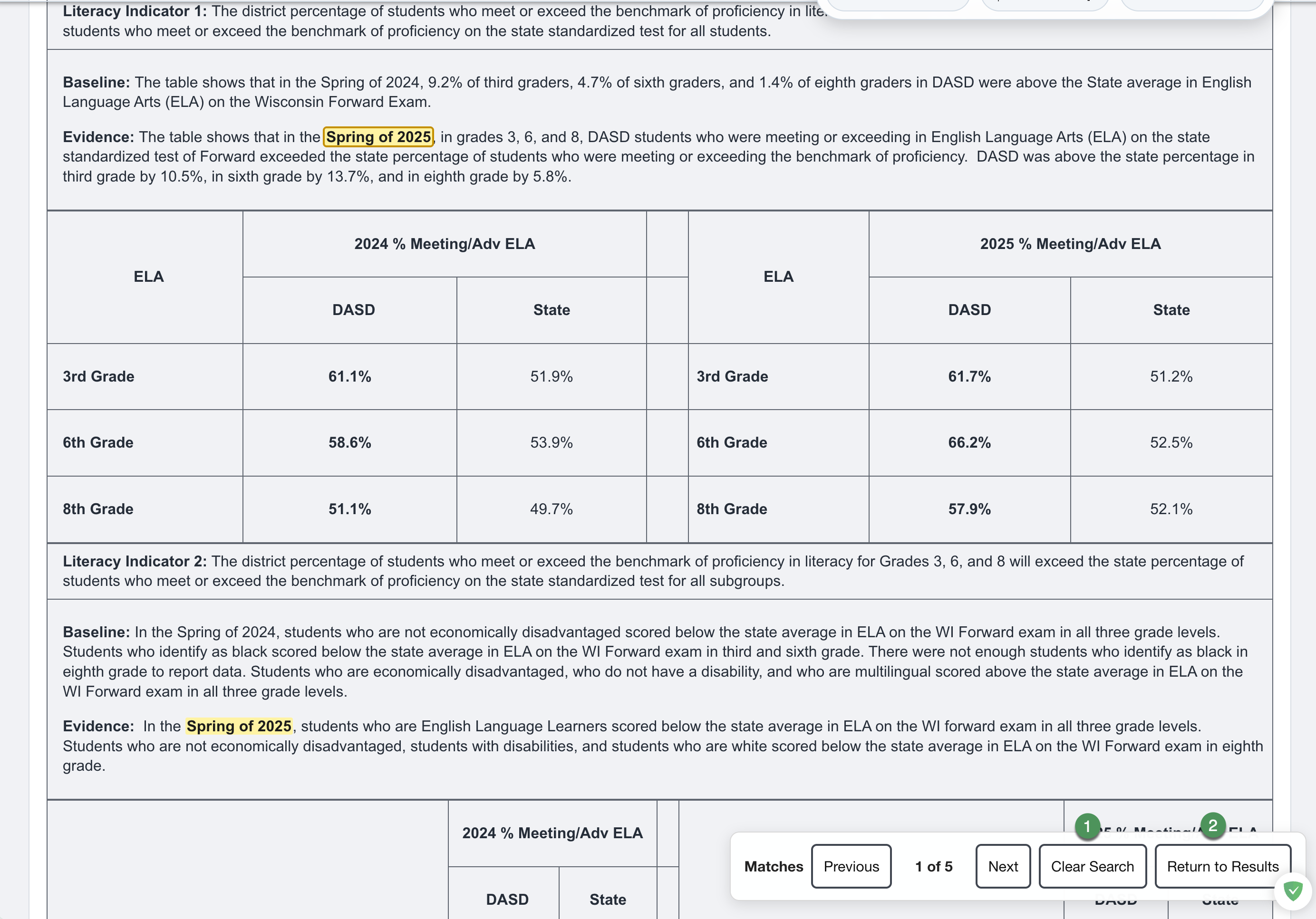
Figure SB-BRD-018. Clear Search and Return to Results.
Print or save
- Open the correct meeting.
- Select Print Full Packet to include available packet materials, or Print Agenda Only for the agenda page.
- Review the browser print preview.
- Confirm the meeting title, date, sections, and page sequence.
- Print or use the browser's save-as-PDF option when district policy permits.
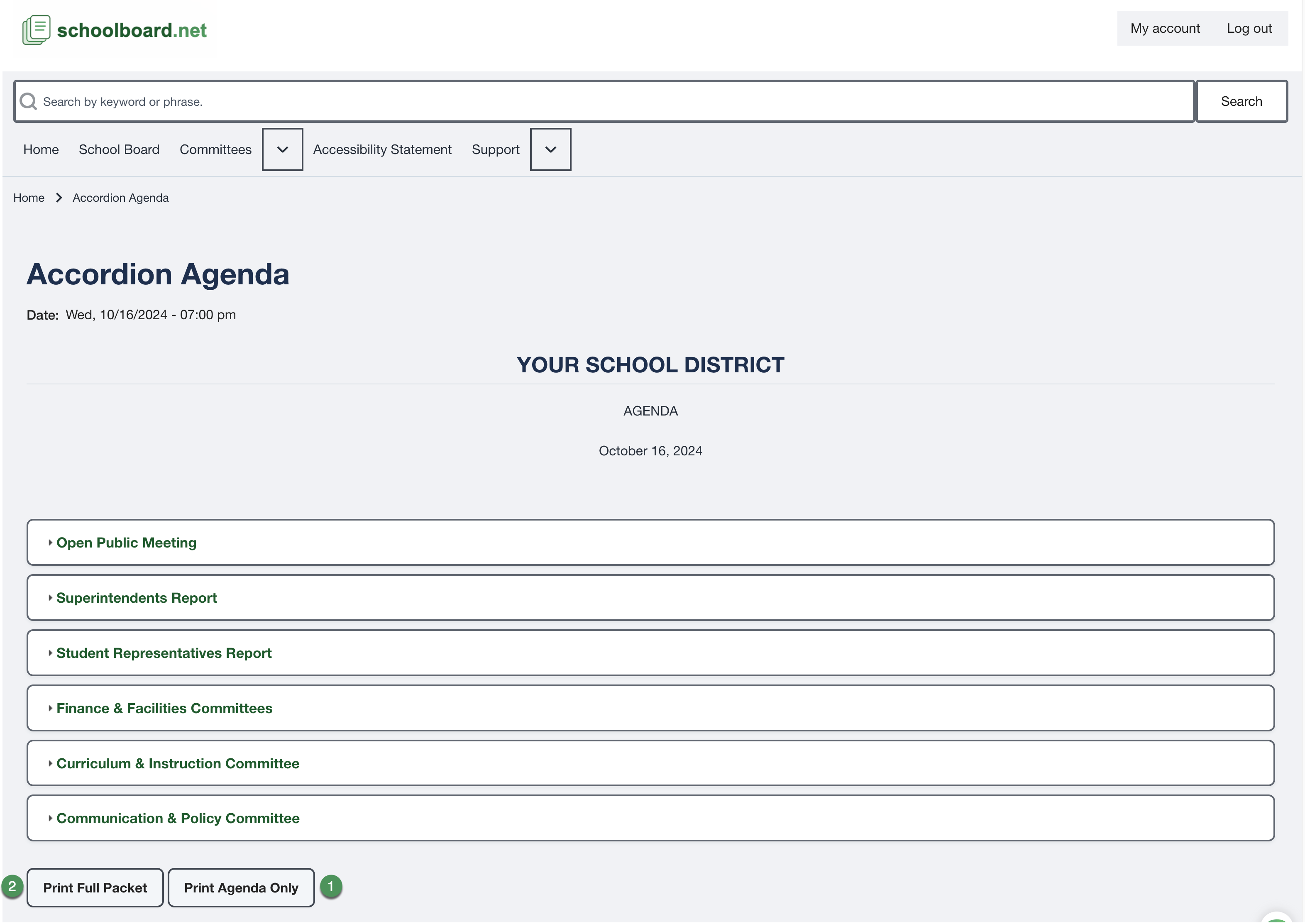
Figure SB-BRD-019. Meeting print controls.
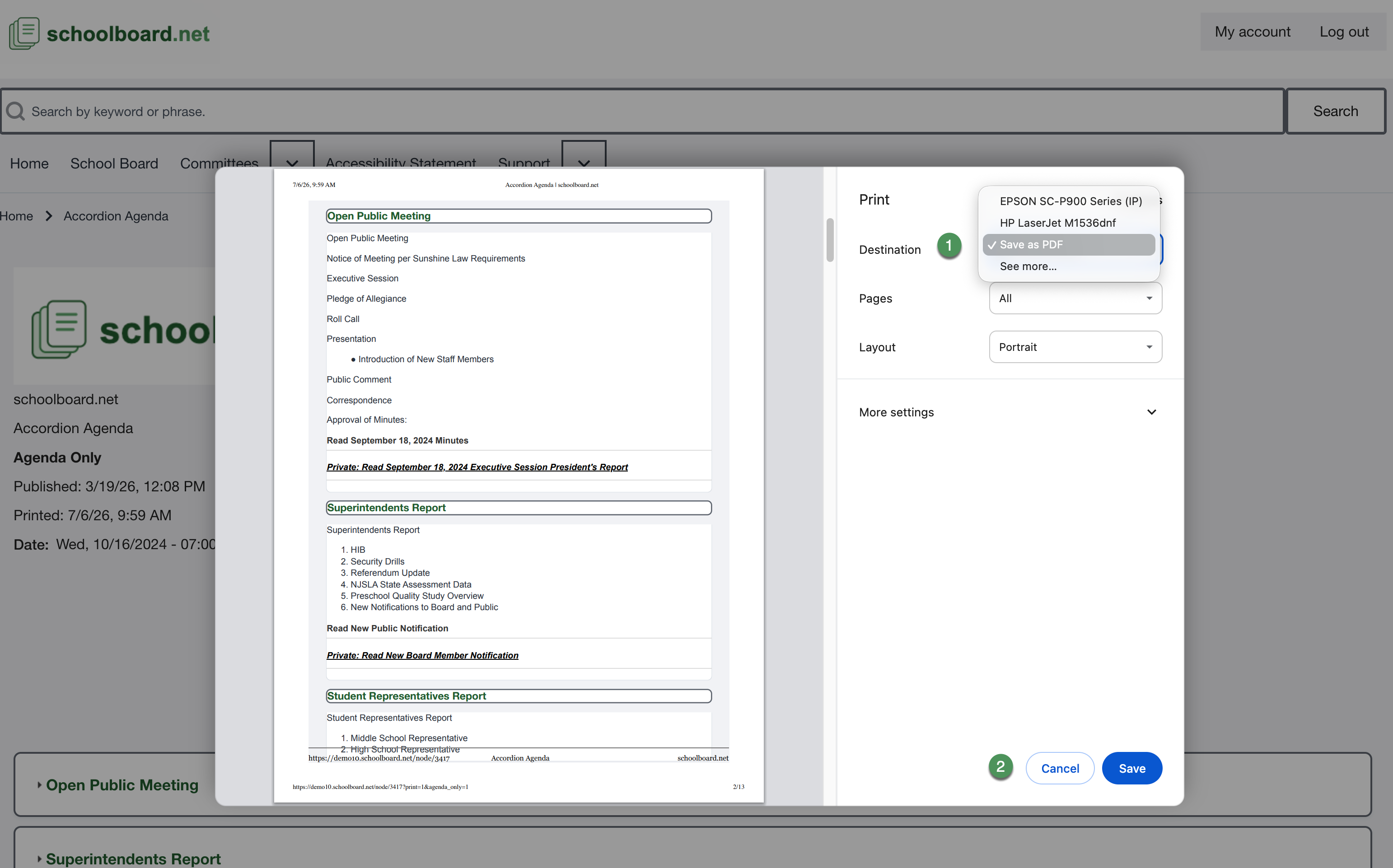
Figure SB-BRD-020. Browser print preview.
Warning
A printout or saved copy can contain private Board material. Secure or destroy it according to district policy.
Related Topics
Revision History
| Version | Date | Status | Summary |
|---|---|---|---|
| 1.0 | 2026-07-13 | Review Draft | Online search and printing procedures aligned with approved controls. |