Sign in and accounts
Sign in with your assigned account to view Board-only materials authorized for you.
Sign in
- Open the district's schoolboard.net home page.
- Select Log in.
- Enter the username or email address supplied by the district.
- Enter your password.
- Select Log in on the form.
- Confirm that My account and Log out are available.

Figure SB-BRD-002. Log in control.
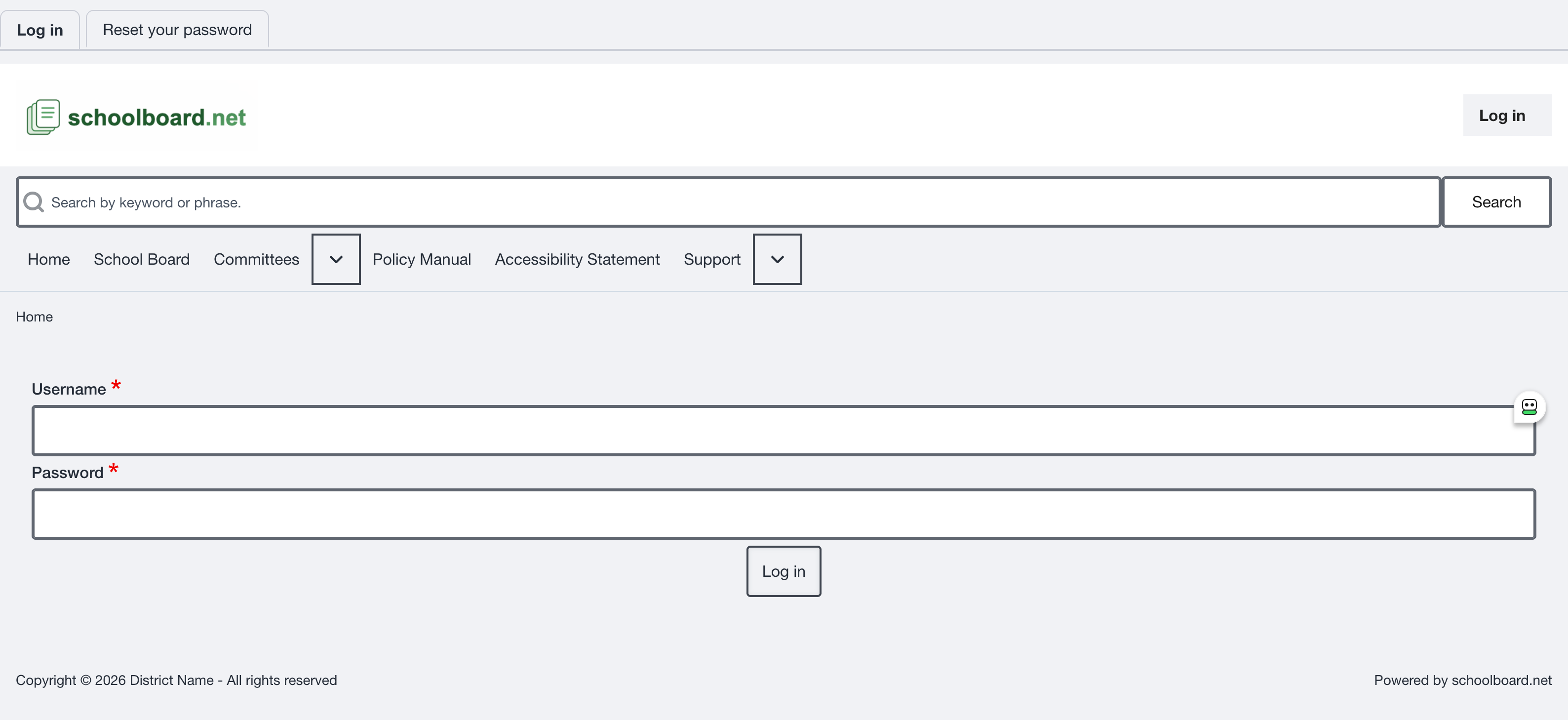
Figure SB-BRD-003. Board Member login form.
If sign-in fails
Check the username or email address, confirm that Caps Lock is off, and re-enter the password. The error message does not reveal which entry was incorrect.
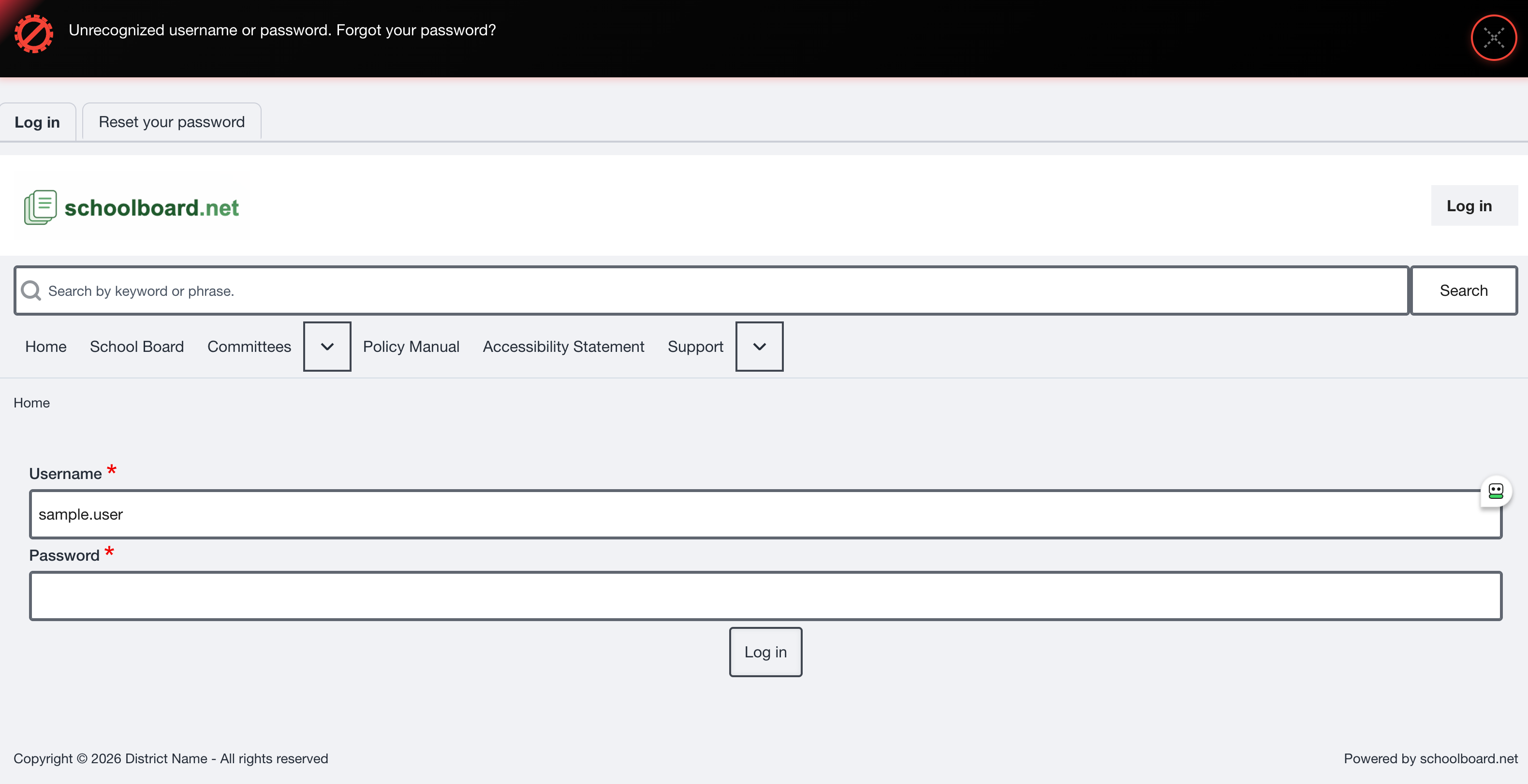
Figure SB-BRD-004. Generic unsuccessful sign-in message.
Reset a forgotten password
- Select the password-reset link on the login page.
- Enter the requested username or email address.
- Submit the request.
- Check the email account associated with your profile.
- Use the newest time-limited reset link.
- Return to the district site and sign in.
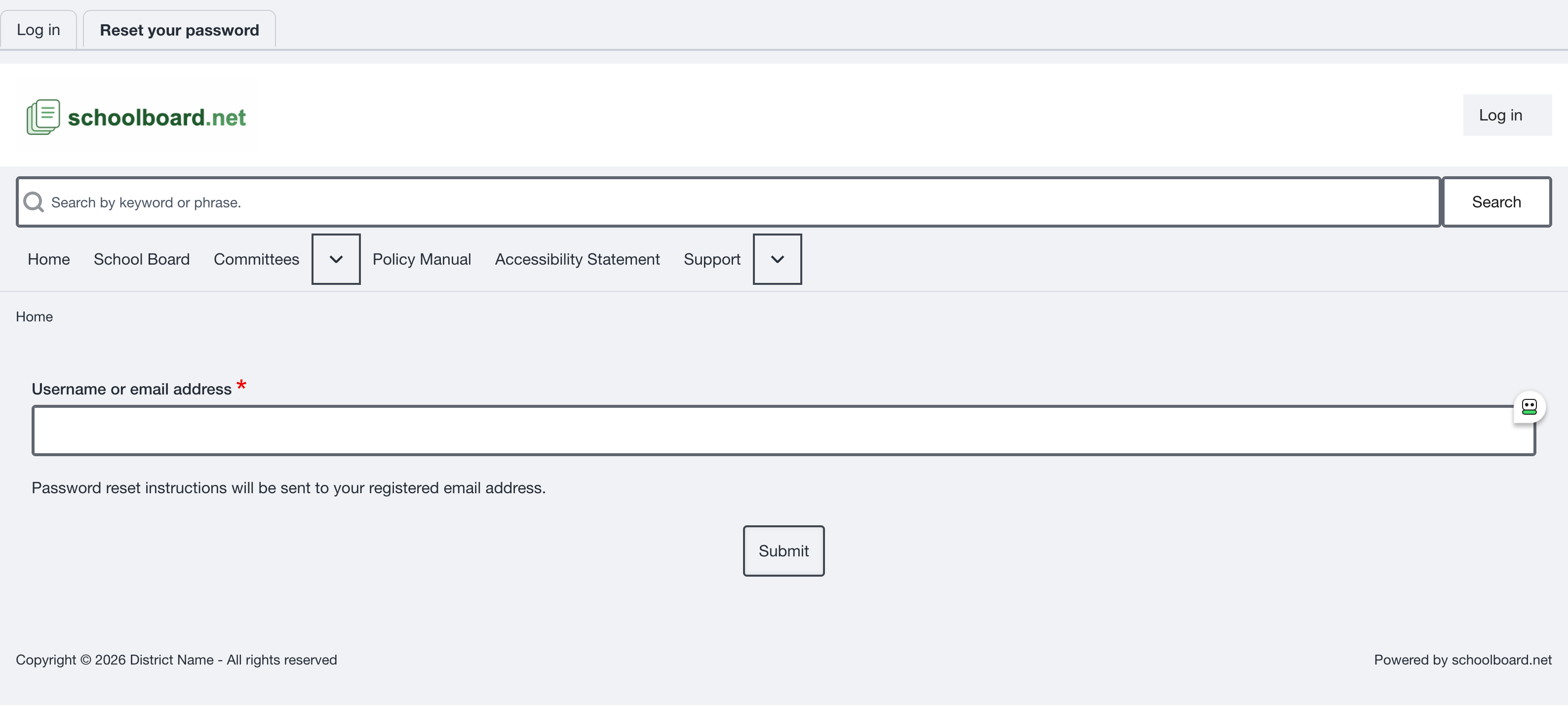
Figure SB-BRD-005. Password reset request.
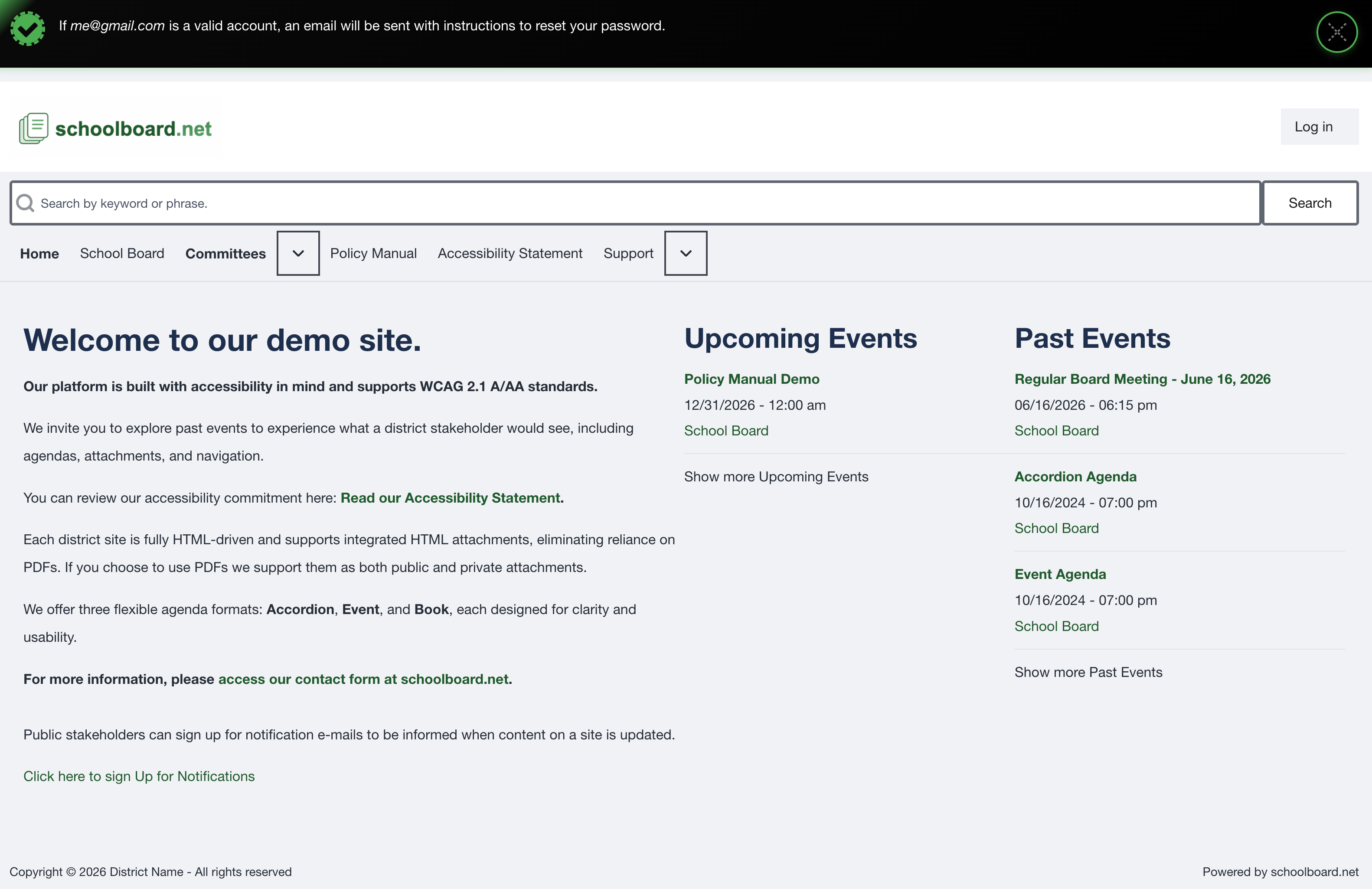
Figure SB-BRD-006. Password reset confirmation.
Protect your account
- Use only your assigned account.
- Do not forward password-reset messages or private material links.
- Sign out before leaving a shared computer.
- Store credentials in an approved password manager.
Related Topics
Revision History
| Version | Date | Status | Summary |
|---|---|---|---|
| 1.1 | 2026-07-13 | Distribution | Added a direct path to My Account procedures. |
| 1.0 | 2026-07-13 | Review Draft | Online sign-in and password-reset procedures with approved screenshots. |